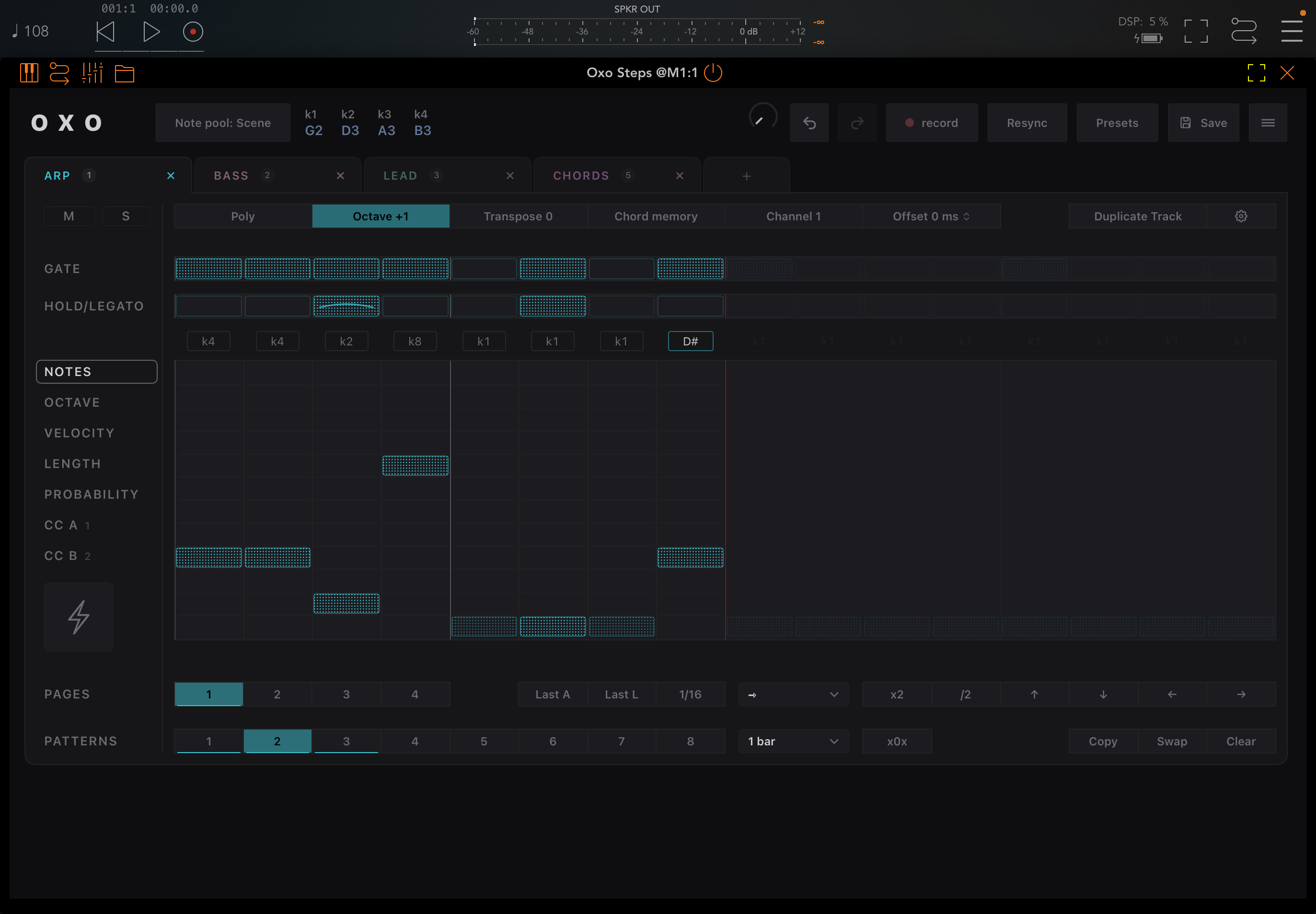
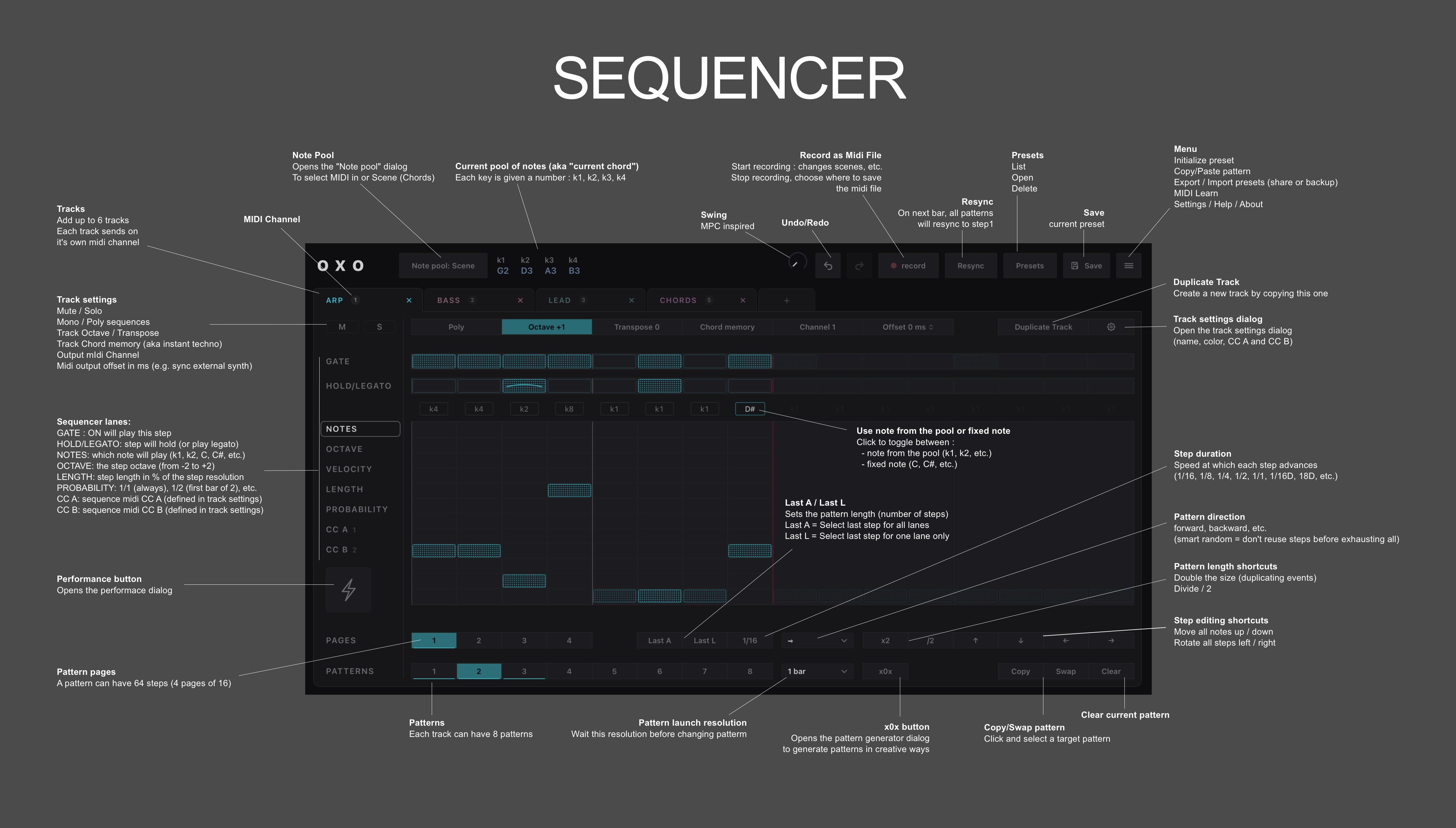
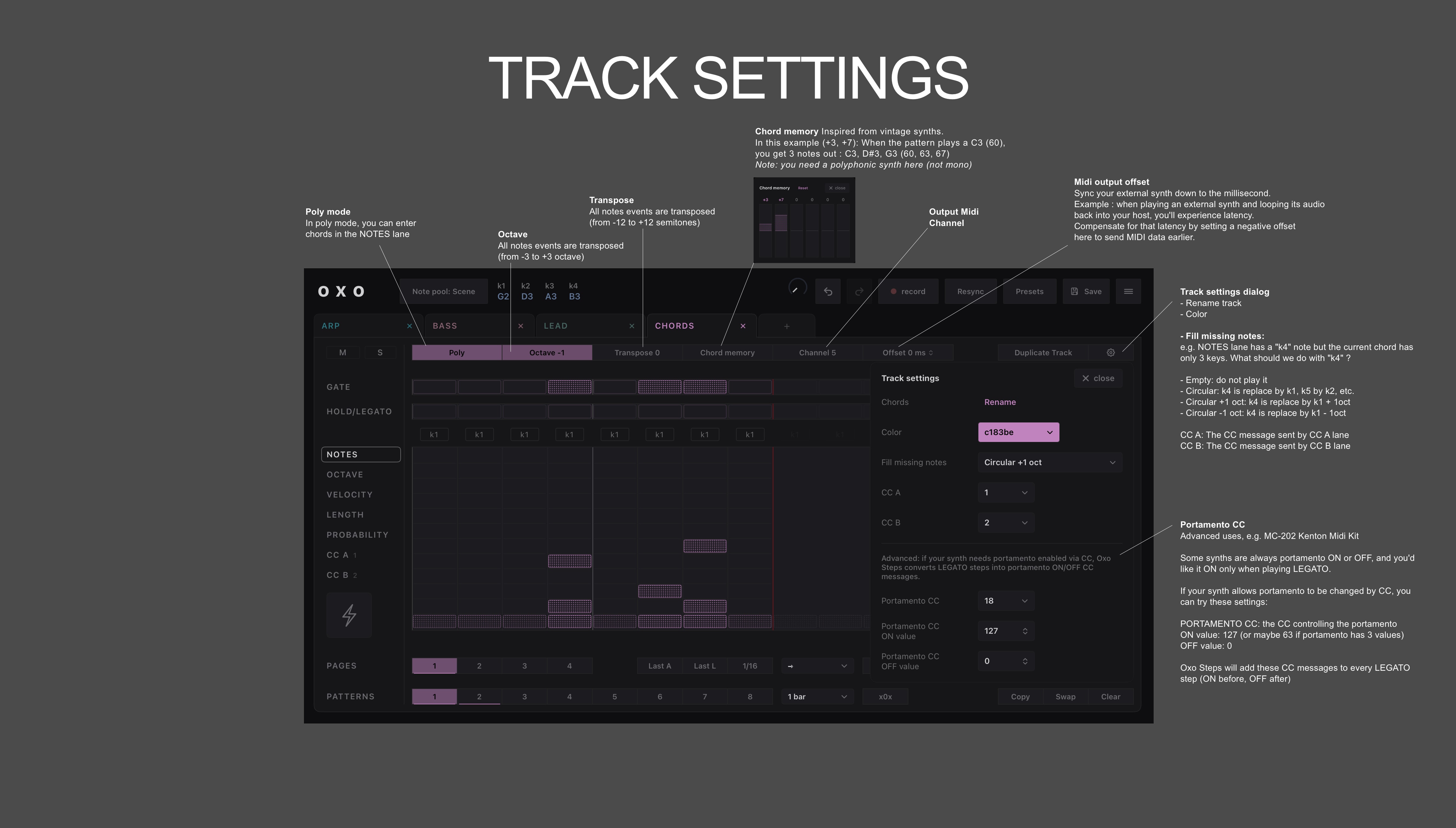
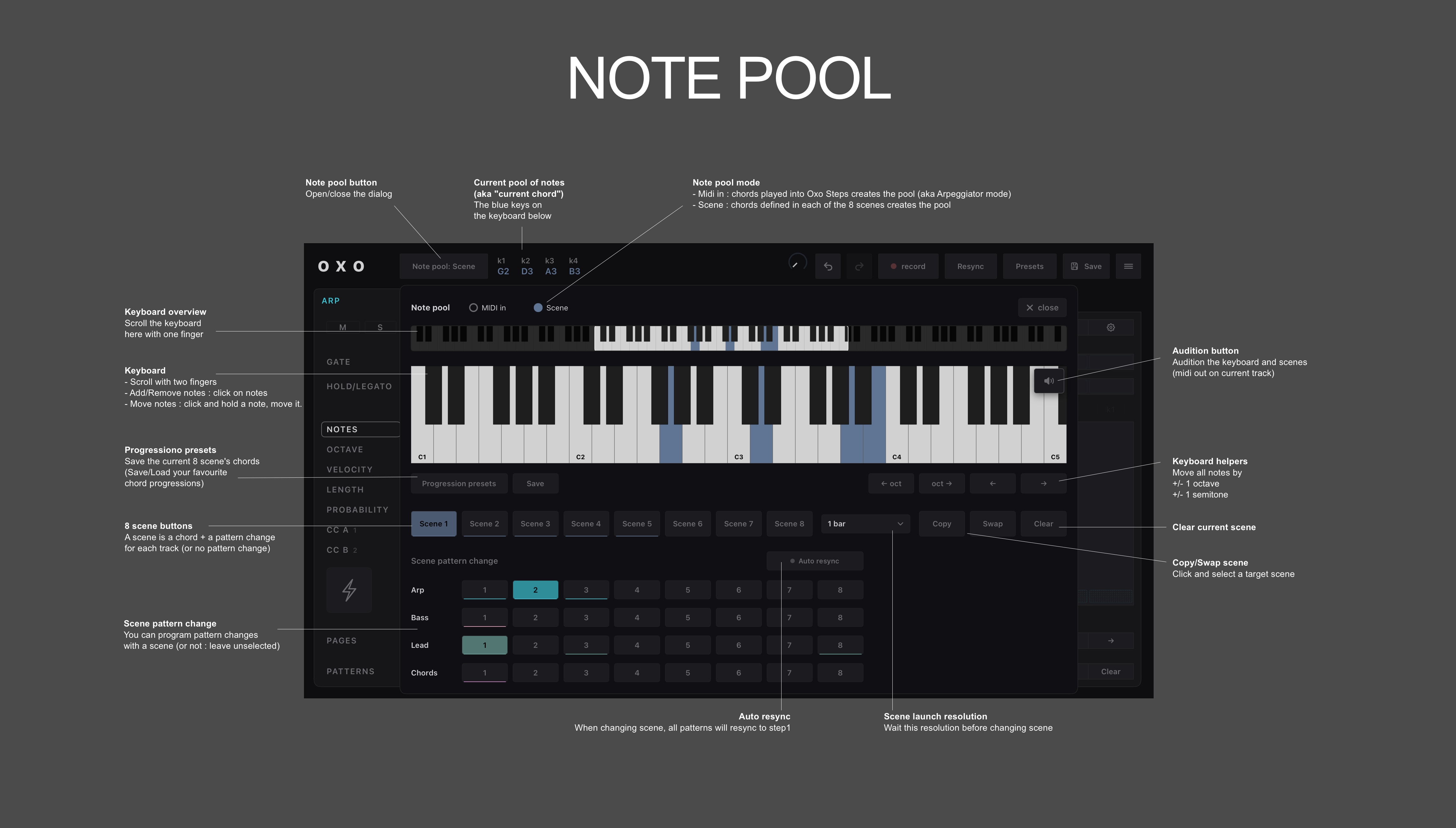
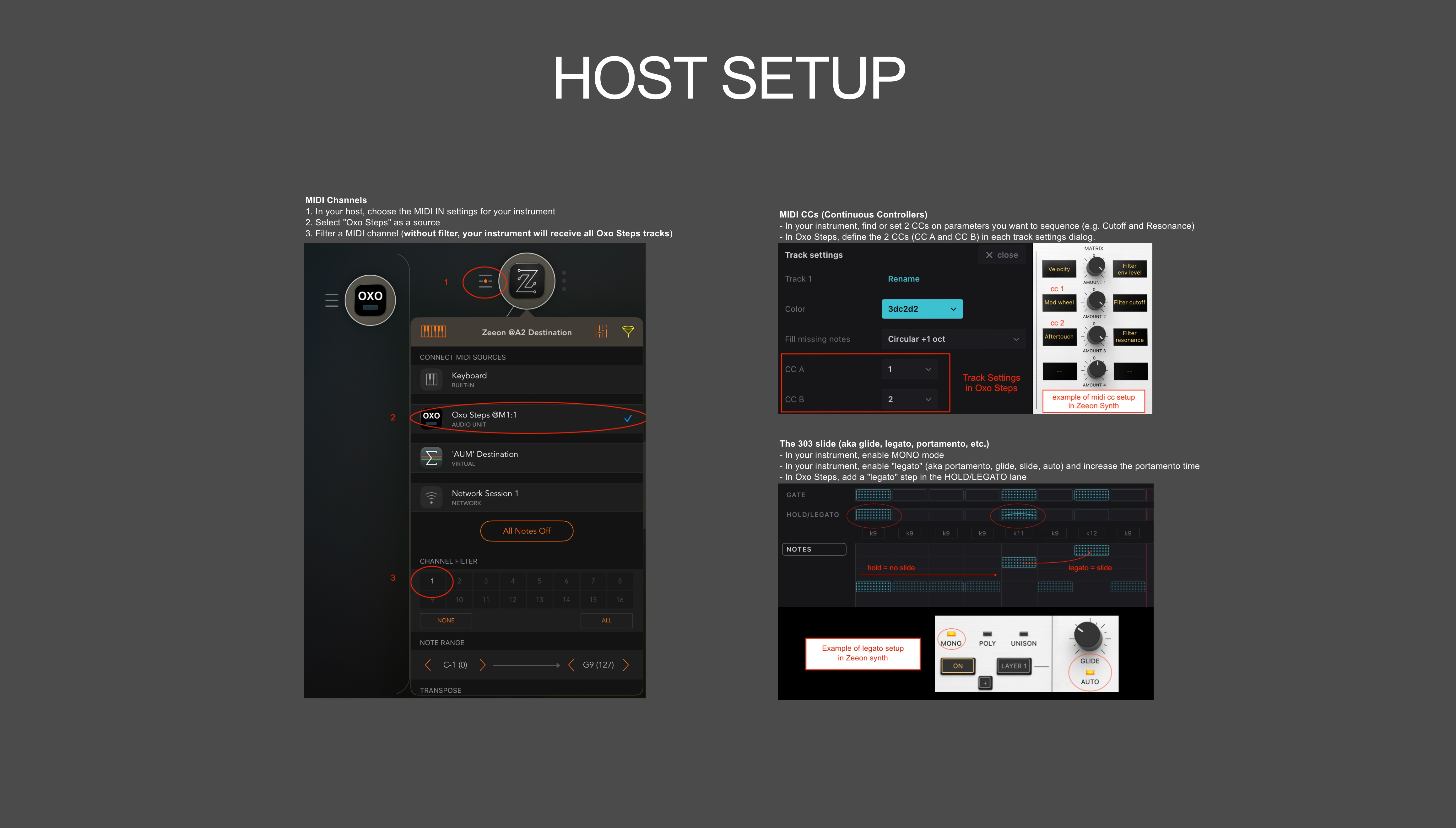
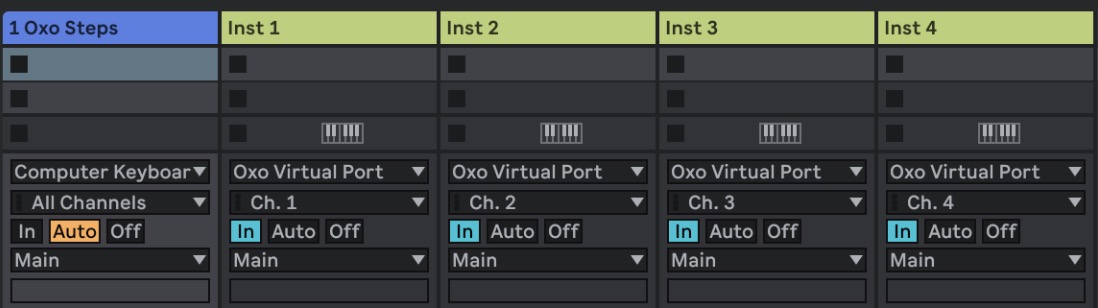
Oxo Steps sends MIDI on different channels, but Ableton Live can't route a plugin's MIDI output to separate channels (see this article).
Workaround
Oxo Steps creates a virtual MIDI port called Oxo Virtual Port.
Make sure Oxo Virtual Port is enabled in Live's MIDI settings.
Select it as the MIDI From input of your instrument tracks, and pick the desired MIDI channel.
Good to know
Exclude Oxo Virtual Port from Oxo Steps own MIDI input, otherwise it can create a feedback loop in some cases (e.g. MIDI learn or MIDI In enabled).
The normal MIDI path is untouched, so other DAWs work normally. The virtual port simply copies every MIDI message on top of the usual VST3/AU MIDI output.
Oxo Virtual Port is visible to other apps on your mac too. Happy accidents can result from this, unhappy accidents too: for instance when a track listens to "All Ins".
Example in Ableton Live
Download the preset used in the video: OxoStepsDemoPreset.json.zip (then in the plugin : menu > import one preset)
 Oxo Steps